![nomono-logo-default-on-light (1) (1)-2.svg]](https://support.nomono.co/hubfs/nomono-logo-default-on-light%20(1)%20(1)-2.svg)
Step-By-Step Guide
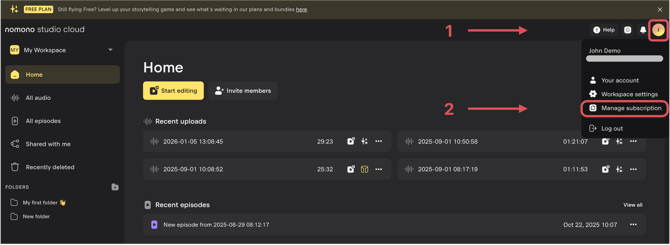
Step 1: Access Your Subscription Settings
- Navigate to the Manage subscription settings page as shown in the image below.
Step 2: Go to the “Your Plan” Page
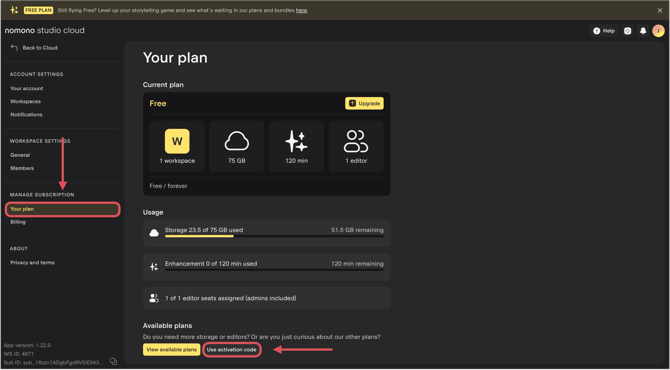
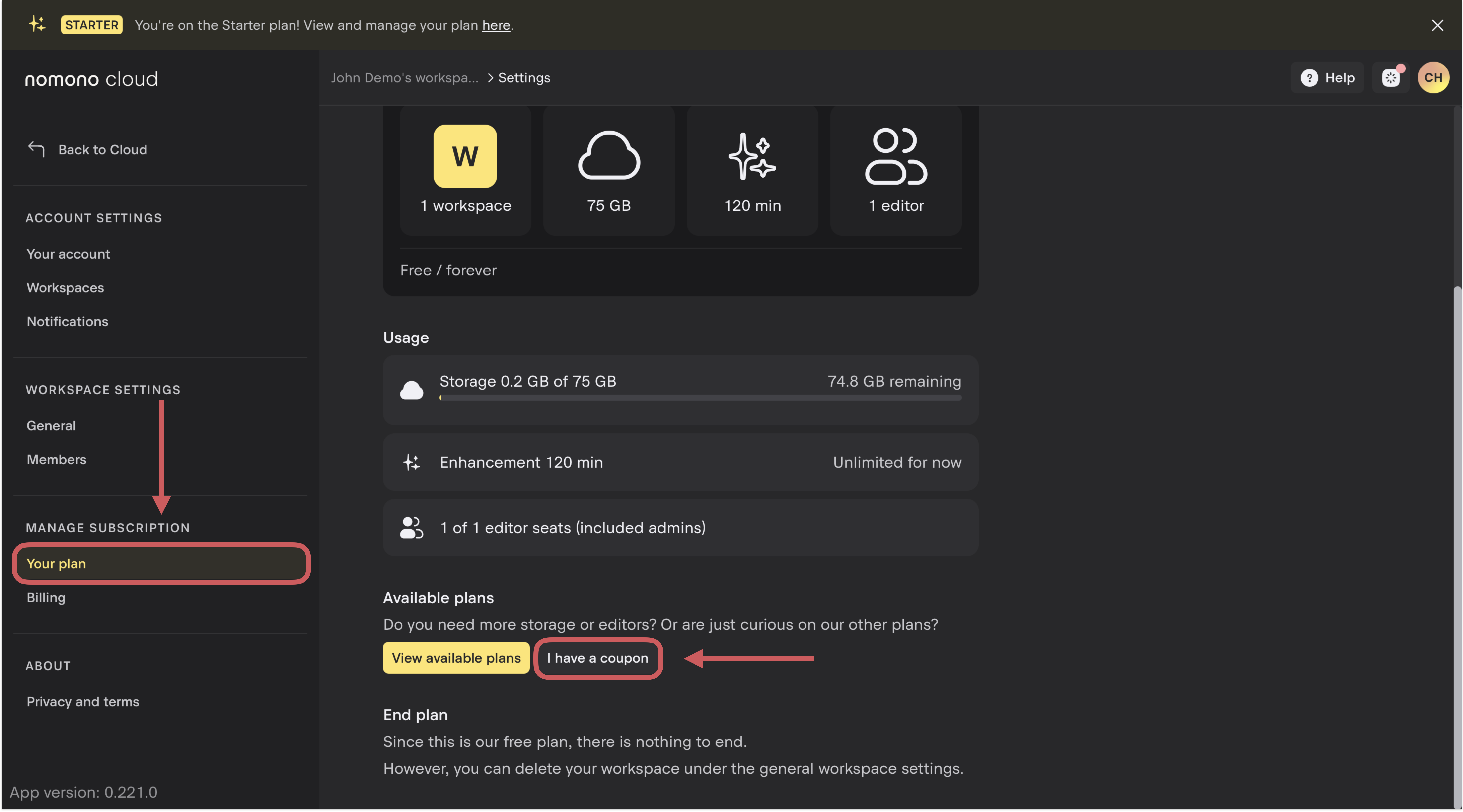
- In the left-hand side menu, select Your Plan.
- Click on the Use activation code button.
Step 3: Enter Your Activation Code
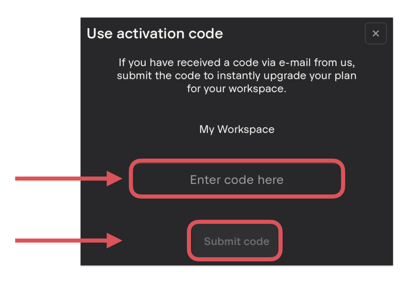
- Type the activation code into the designated field.
- Once the correct code is entered, and the button turns yellow, press Submit Code.
Congratulations!
Your account will now be upgraded based on the specifications of your code.
Troubleshooting Common Issues
If you encounter issues while entering your activation code, try the following:
- Check for Typing Errors
- Ensure you’ve entered the code exactly as provided.
- Avoid spaces before or after the code and use the correct capitalization.
- Verify the Coupon Status
- Confirm that the code has not already been applied to your account.
- Check if the code has expired.
- Contact Nomono Support
- If the issue persists, reach out to our Support Team for further assistance.
By following these steps, you should have no trouble applying your Nomono Cloud activation code and enjoying your upgraded account benefits!