---
title: Creating a Stellar Kit from a Sound Capsule
description: In this guide, we’ll walk you through the full process - from disconnecting Stellar Mics from the Sound Capsule, to setting them up as a Stellar Kit. When you’re done, the mics can easily be re-docked and reconnected to the Sound Capsule, restoring the familiar 4-mic setup. You can repeat this process as often as you like, making it ideal for lightweight, two-mic recording sessions.
---
[Skip to content](https://support.nomono.co/creating-a-stellar-kit-from-a-sound-capsule#main-content)
[Contact us](https://support.nomono.co/kb-tickets/new?hsLang=en)
[![nomono-logo-default-on-light (1) (1)-2.svg\]](https://support.nomono.co/hubfs/nomono-logo-default-on-light%20(1)%20(1)-2.svg)](https://nomono.co)
Open main navigation
Close main navigation
- [Contact us](https://support.nomono.co/kb-tickets/new)
- [Go to nomono.co](https://nomono.co/)
[Go to nomono.co](https://nomono.co/)
How can we help you?
- There are no suggestions because the search field is empty.
1. [Knowledge Base](https://support.nomono.co/?hsLang=en)
2. [Sound Capsule](https://support.nomono.co/sound-capsule?hsLang=en)
3. [Sound Capsule FAQ](https://support.nomono.co/sound-capsule?hsLang=en#sound-capsule-faq)
# Creating a Stellar Kit from a Sound Capsule
## From firmware version 2026.02.07, the Sound Capsule can disconnect individual Stellar Mics. This makes it possible to use the mics in pairs of two and create a portable Stellar Kit without the need to bring rest of the Sound Capsule with you.
In this guide, we’ll walk you through the full process - from disconnecting Stellar Mics from the Sound Capsule, to setting them up as a Stellar Kit. When you’re done, the mics can easily be re-docked and reconnected to the Sound Capsule, restoring the familiar 4-mic setup. You can repeat this process as often as you like, making it ideal for lightweight, two-mic recording sessions.
**Important:** To update the Sound Capsule firmware, all four Stellar Mics must be docked and connected to the Space Recorder.
---
### **Index**
*To skip to your required section, click the links below*
- **[Part 1 - Disconnecting Stellar Mics](https://support.nomono.co/creating-a-stellar-kit-from-a-sound-capsule#P1)**
- **[Part 2 - Setting up a Stellar Kit](https://support.nomono.co/creating-a-stellar-kit-from-a-sound-capsule#P2)**
- **[Part 3 - Reconnecting Stellar Mics](https://support.nomono.co/creating-a-stellar-kit-from-a-sound-capsule#P3)**
---
**Note:** Before you start experimenting with moving Stellar Mics in and out of the Sound Capsule kit and over to a Stellar Kit it's important to note that the LED colors of each mic may change. Don't worry - once you connect them back to the Sound Capsule you will end up with 4 different colored Stellar Mics again.
### **Part 1: Disconnecting Stellar Mics**
1. Press and hold the **Down Arrow** button for 5 seconds to open the Sound Capsule Control Panel.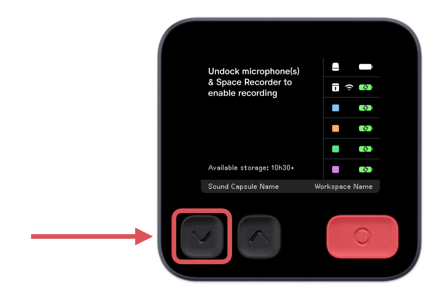
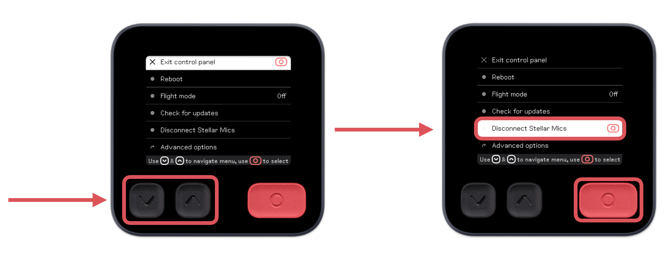
2. Use the arrow buttons to navigate to **Disconnect Stellar Mics**, then press the **Record** button to select it.
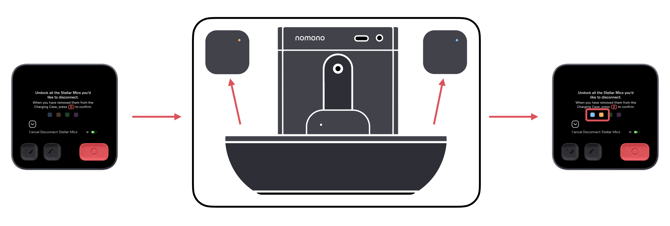
3. When prompted on screen, **undock the Stellar Mics** you want to disconnect.
- Any mics left in the dock will remain connected to the Sound Capsule.
- Observe that the colors of the undocked Stellar Mics correlate with the highlighted Stellar Mic colors. This screen updates for each mic you undock.
- Press the **Record** button to confirm your selection.
4. A confirmation message will now appear. Press the **Down Arrow** button to dismiss. The chosen Stellar Mics will now be disconnected and appear with question marks symbols on the Space Recorder Home Screen, as shown below:
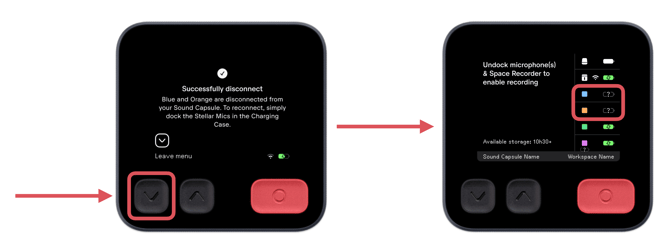
Your selected Stellar Mics are now successfully disconnected and ready to be used as a two-mic Stellar Kit.
**Tip:** You can pair either one or two Stellar Mics to the Studio App when you set up a Stellar Kit. A pair of two mics are perfect for 1 on 1 interviews or conversations, while it is also possible to just use one mic for voiceovers or similar.
Please note that a Stellar Kit does not support 3 or 4 Stellar Mics.
---
### **Part 2 - Setting up a Stellar Kit**
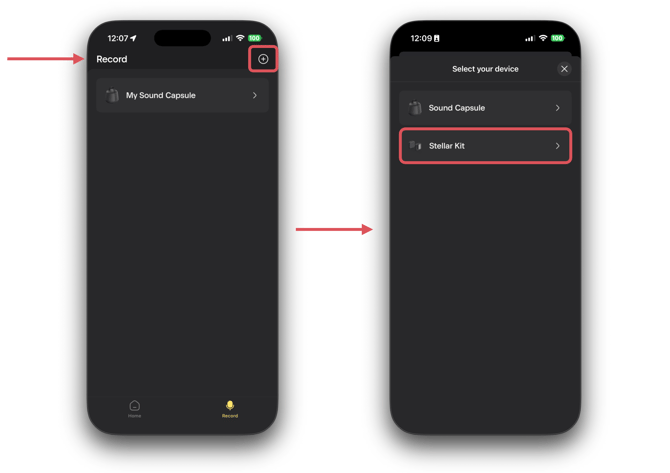
1. Navigate to the **Record** screen and press the **Add device (+)** button and choose **Stellar Kit**
****
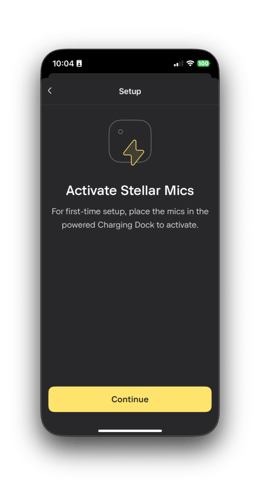
2. **Activate Stellar Mics**
- Ensure that the Stellar Mic(s) are powered on and press **Continue**
### 
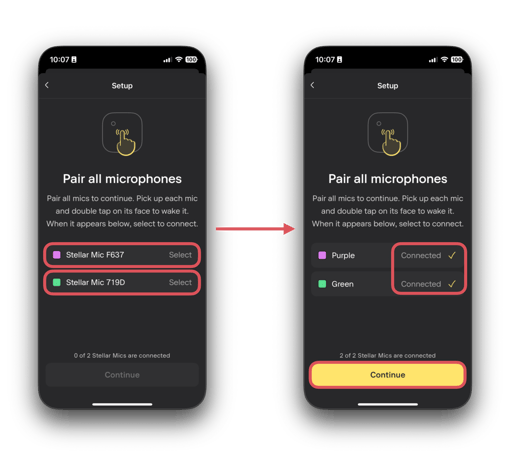
3. **Select Stellar Mic(s) and pair**
- Select your Stellar Mics from the **list of microphones** now shown on screen. There may be one or more devices shown depending on how many Stellar Mics are nearby.
- Once selected the Stellar Mics should have a yellow tick to the right of their color description, indicating that a connection has been made.
- When one or two Stellar Mics have been connected, press **Continue** to proceed.
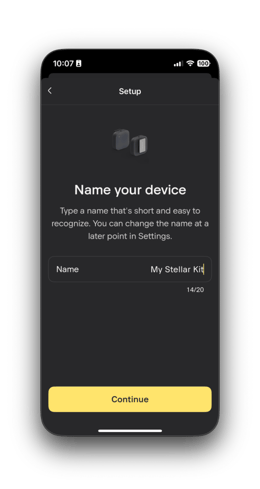
4. **Name your device**
- Enter a name for your Stellar Kit and press **Continue**.
5. **Locate and enter your Stellar Kit**
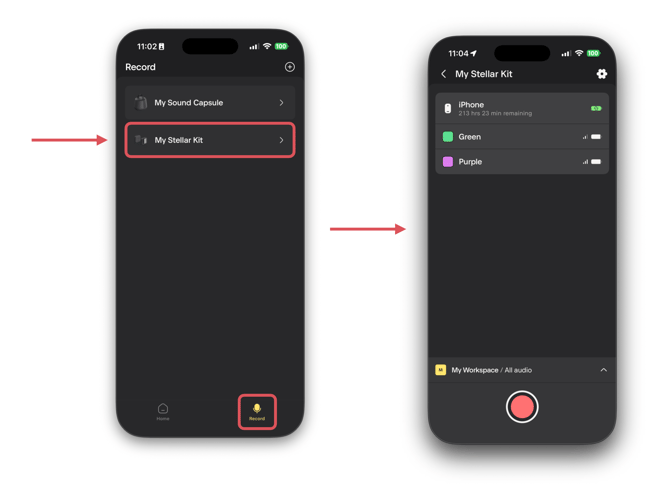
- You are now brought to the **Record** page in the Nomono Studio App. This is where all your Nomono products and kits are located.
- Select your newly created Stellar Kit from the list to enter it
- You are now ready to do your first Stellar Kit recording
**Tip:** Check out our [Knowledge Base articles](https://support.nomono.co/stellar-kit#main-content) on the Stellar Kit to get going. We will add more content as we go.
**Pro tip:** Stellar Mics will fall asleep when the app is closed. You can tap on the Stellar Mics with your fingers to wake them up. Check out the Stellar Kit [manual](https://support.nomono.co/stellar-kit-product-booklet?hsLang=en) for further instructions.
---
### **Part 3 - Reconnecting Stellar Mics**
To reconnect the Stellar Mics to the Sound Capsule:
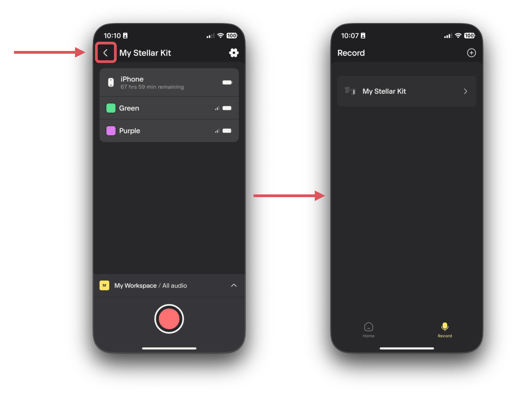
- Ensure the Studio App does not have an active connection to the Stellar Mics by exiting the kit (as shown below) or by [force quitting](https://support.nomono.co/force-quitting-the-studio-app?hsLang=en) the app.
- Place all 4 Stellar Mics and the Space Recorder back in the Sound Capsule Charging Case, and wait for 5-10 seconds
**Important!** If the Stellar Mics are not registering properly, ensure that the app is properly closed, and repeat the process.
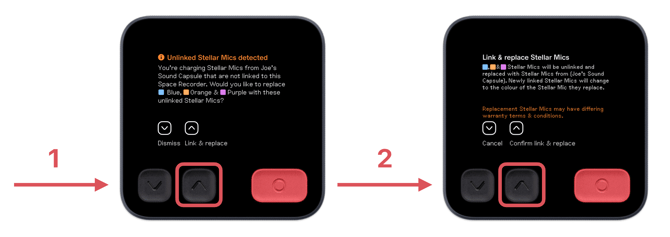
- On the pop-up screen **Unlinked Stellar Mic detected**, press the **Up Arrow** button to link and replace, and on the following screen press the **Up Arrow** button once more to confirm link and replace.
- Verify all Stellar Mic's are ready to record from the Space Recorder screen by undocking and docking Stellar Mics and checking that the display updates accordingly.
**How to correctly identify docking status:** Undock and dock the Stellar Mic's a few times to check that they change position on the Space Recorder display. See the photo below:
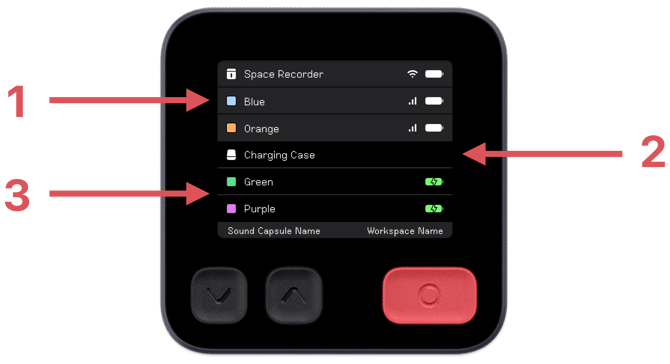
1. Undocked Stellar Mic's will be placed above the Charging Case in the list and will have a grey background as well as a wireless signal-strength icon next to the battery level.
2. When the Space Recorder is not in the Charging Case, or whenever the Charging Case has ran out of battery completely, there will be no battery information shown on the Space Recorder display.
3. Docked Stellar Mics will be at the bottom of the list, beneath the Charging Case, and will be shown as either charging or fully charged. There will be no wireless signal-strength icon shown on docked Stellar Mic's.
For full understanding of dock and activation, visit [this article](https://support.nomono.co/recording-with-a-dead-charging-case?hsLang=en).
Please [contact Nomono Support](https://support.nomono.co/kb-tickets/new?hsLang=en) if you experience any difficulty with maneuvering between kits or require any assistance. Share as much detail as possible to help facilitate a quick and accurate response from us.
- [Getting Started](https://support.nomono.co/getting-started?hsLang=en#main-content)
- [Introduction](https://support.nomono.co/getting-started?hsLang=en#introduction)
- [Get to know your Sound Capsule](https://support.nomono.co/getting-started?hsLang=en#get-to-know-your-sound-capsule)
- [First Time Use](https://support.nomono.co/getting-started?hsLang=en#first-time-use)
- [User Manual](https://support.nomono.co/getting-started?hsLang=en#user-manual)
- [Tutorials](https://support.nomono.co/getting-started?hsLang=en#tutorials)
- [Sound Capsule](https://support.nomono.co/sound-capsule?hsLang=en#main-content)
- [Charging and Battery](https://support.nomono.co/sound-capsule?hsLang=en#charging-and-battery)
- [Sound Capsule FAQ](https://support.nomono.co/sound-capsule?hsLang=en#sound-capsule-faq)
- [Stellar Mics FAQ](https://support.nomono.co/sound-capsule?hsLang=en#stellar-mics-faq)
- [Travelling with the Sound Capsule](https://support.nomono.co/sound-capsule?hsLang=en#travelling-with-the-sound-capsule)
- [Troubleshooting](https://support.nomono.co/sound-capsule?hsLang=en#troubleshooting)
- [USB File Transfer](https://support.nomono.co/sound-capsule?hsLang=en#usb-file-transfer)
- [Video and live streaming](https://support.nomono.co/sound-capsule?hsLang=en#video-and-live-streaming)
- [Wi-Fi and Connectivity](https://support.nomono.co/sound-capsule?hsLang=en#wi-fi-and-connectivity)
- [Stellar Kit](https://support.nomono.co/stellar-kit?hsLang=en#main-content)
- [FAQ](https://support.nomono.co/stellar-kit?hsLang=en#faq)
- [Troubleshooting](https://support.nomono.co/stellar-kit?hsLang=en#troubleshooting)
- [Studio Cloud](https://support.nomono.co/studio-cloud?hsLang=en#main-content)
- [Account](https://support.nomono.co/studio-cloud?hsLang=en#account)
- [AI Enhancement](https://support.nomono.co/studio-cloud?hsLang=en#ai-enhancement)
- [Cloud FAQ](https://support.nomono.co/studio-cloud?hsLang=en#cloud-faq)
- [Collaborating and Sharing](https://support.nomono.co/studio-cloud?hsLang=en#collaborating-and-sharing)
- [Commenting](https://support.nomono.co/studio-cloud?hsLang=en#commenting)
- [Editing](https://support.nomono.co/studio-cloud?hsLang=en#editing)
- [Subscription](https://support.nomono.co/studio-cloud?hsLang=en#subscription)
- [Troubleshooting](https://support.nomono.co/studio-cloud?hsLang=en#troubleshooting)
- [Uploads and Downloads](https://support.nomono.co/studio-cloud?hsLang=en#uploads-and-downloads)
- [Orders, shipping and returns](https://support.nomono.co/orders-shipping-and-returns?hsLang=en#main-content)
- [Orders](https://support.nomono.co/orders-shipping-and-returns?hsLang=en#orders)
- [Payment and billing](https://support.nomono.co/orders-shipping-and-returns?hsLang=en#payment-and-billing)
- [Returns](https://support.nomono.co/orders-shipping-and-returns?hsLang=en#returns)
- [Shipping](https://support.nomono.co/orders-shipping-and-returns?hsLang=en#shipping)
- [Warranty](https://support.nomono.co/orders-shipping-and-returns?hsLang=en#warranty)
- [Updates and New Features](https://support.nomono.co/updates-and-new-features?hsLang=en#main-content)
- [Sound Capsule](https://support.nomono.co/updates-and-new-features?hsLang=en#sound-capsule)
- [Nomono Cloud](https://support.nomono.co/updates-and-new-features?hsLang=en#nomono-cloud)
- [Guides](https://support.nomono.co/updates-and-new-features?hsLang=en#guides)
[-2.png?width=160&height=24&name=logo%20(1)-2.png "Chill listening crop-3")](http://nomono.co)
Knowledge Base
Copyright © 2026, Nomono