![nomono-logo-default-on-light (1) (1)-2.svg]](https://support.nomono.co/hubfs/nomono-logo-default-on-light%20(1)%20(1)-2.svg)
Working with episodes in Studio Cloud comes down to three steps:
- Create an episode to work in
- Add your recordings and edit them
- Download the finished episode as one continuous file
This article covers the first step — getting your recordings organized and your episode created. There isn't just one way to do this, so we'll walk through each path and what to expect from it. For the actual editing and downloading, we've linked the right guides at the end.
Creating and Locating Your Episode
There are a few different ways to start an episode from the Home page, plus one shortcut for finding episodes you've already made. They don't all behave the same way, so here's what actually happens with each:
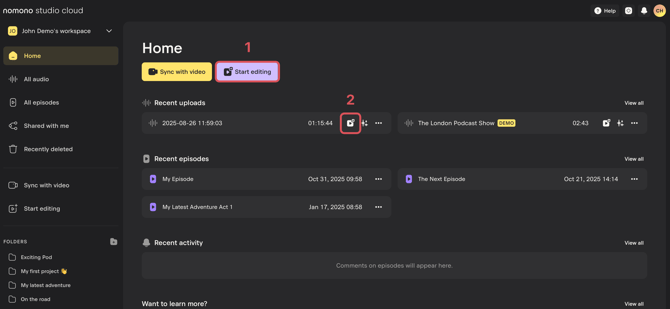
- Start editing — opens a new, empty episode. Since it isn't tied to any recording, you'll always be asked to choose or create a folder for it before it's created.
- Quick-create icon on a recording — creates a new episode with that recording pre-loaded, but what happens next depends on the recording:
- If the recording is already sitting in a folder, the episode is created there automatically.
- If the recording is not yet in a folder (only showing under All audio), you'll be asked to choose or create a folder, just like with Start editing.
Choose a folder:
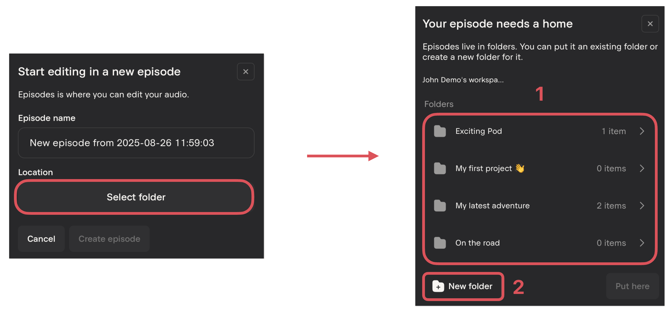
A window like this will appear. You can browse into any Existing Folder (1) — including subfolders — and select Put here, or click New folder (2) to create a new one on the spot.
Tip: If you're still finding your way around Studio Cloud, creating your folder first using the sidebar's New folder icon means every method above will already have somewhere to land — skipping the picker step entirely. Give the folder a name that matches your project, such as the name of your podcast or show. If you're working on something with multiple parts, like a book or a course, you can create subfolders inside it later to keep chapters or segments separate.
Creating an Episode from Inside a Folder
If you open a folder and click Create episode from there, Studio Cloud already knows where the episode belongs — no folder picker, no extra step.
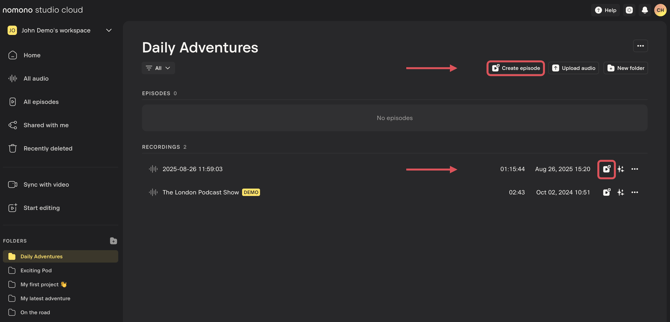
Once inside a folder, you'll also see a few other options:
- Upload audio — add files directly from your computer
- New folder — create a subfolder, useful for splitting larger projects into smaller pieces
Dragging Recordings into a Folder
If you'd rather have your recordings organized into a folder before you start editing, you can drag and drop them in directly — no need to go through an episode at all.
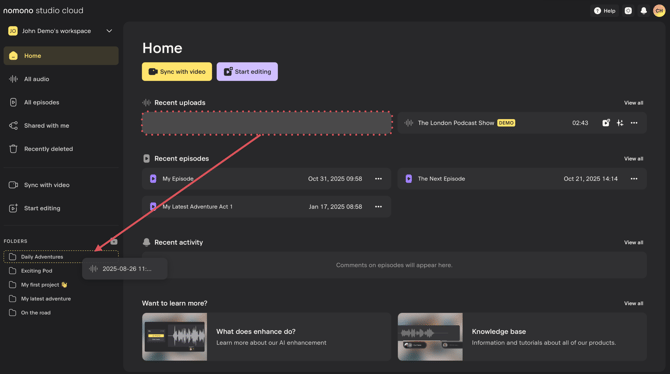
- From the Home page, drag any recording under Recent uploads straight onto a folder in the sidebar.
- If the recording you need isn't shown there, go to All audio in the left-hand menu first, then drag it onto a folder from there instead.
Once it's in the folder, it'll show up under Recordings when you open that folder. This is also what makes the quick-create icon "just work" without asking you to pick a folder — dragging the recording in ahead of time is what puts it there in the first place.
Adding Recordings to Your Episode
However you got your episode created, adding audio works the same way from there:
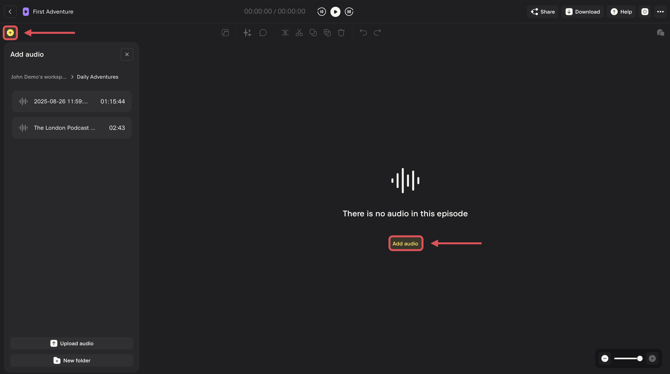
- Inside the episode, click the + icon or Add audio.
- This opens a panel where you can browse All audio, or any folder, using the breadcrumb at the top.
- Click the + next to any recording to add it directly into your episode's timeline.
You're not limited to recordings already in the same folder — you can pull in any recording from your workspace this way.
If you'd rather have things organized before you start editing, you can also drag and drop recordings into a folder ahead of time, either from Recent uploads on the Home page or from All audio in the left-hand menu.
File Management Tips
- Keep one main folder per show or project, and use subfolders for recurring elements like intro/outro audio or background music.
- Create a new episode file for each individual episode, rather than reusing one. This keeps a backup of each episode and makes it easy to go back and re-edit later.
- Use All episodes in the left-hand menu whenever you can't remember which folder an episode lives in.
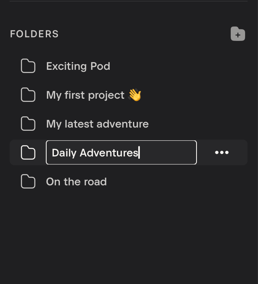
- Tip: A sensible Folder name will prevent files from getting lost
What's Next: Editing and Downloading Your Episode
Now that your episode is set up, you're ready to start editing. Here's where to go next:
- How do I edit using Nomono Cloud? — video walkthrough with our Lead Audio Engineer
- How do I split and trim clips in my episode?
- How do I move multiple clips at the same time?
- How do I download a recording?
- Getting Started with Studio Cloud — full overview of the Studio Cloud homepage and editor