---
title: Troubleshooting Audio Gathering After Stopping A Recording (Stellar Kit)
description: Learn what happens after you stop a recording and how to troubleshoot slow audio gathering
---
[Skip to content](https://support.nomono.co/stellar-kit-gathering#main-content)
[Contact us](https://support.nomono.co/kb-tickets/new?hsLang=en)
[![nomono-logo-default-on-light (1) (1)-2.svg\]](https://support.nomono.co/hubfs/nomono-logo-default-on-light%20(1)%20(1)-2.svg)](https://nomono.co)
Open main navigation
Close main navigation
- [Contact us](https://support.nomono.co/kb-tickets/new)
- [Go to nomono.co](https://nomono.co/)
[Go to nomono.co](https://nomono.co/)
How can we help you?
- There are no suggestions because the search field is empty.
1. [Knowledge Base](https://support.nomono.co/?hsLang=en)
2. [Stellar Kit](https://support.nomono.co/stellar-kit?hsLang=en)
3. [Troubleshooting](https://support.nomono.co/stellar-kit?hsLang=en#troubleshooting)
# Troubleshooting Audio Gathering After Stopping A Recording (Stellar Kit)
## Learn what happens after you stop a recording and how to troubleshoot slow audio gathering
#### **What Happens When You Stop A Recording**
When you stop a recording, the **Stellar Mics** begin transferring any remaining audio data to the recording device. This process is called **data gathering** and happens automatically.
#### **How To Tell That Audio Is Being Gathered**
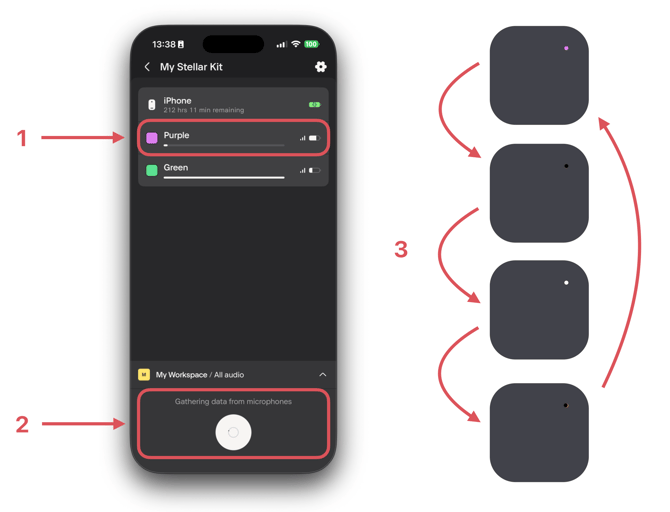
You may see one or more of the following indicators (see image below):
1. **A progress bar on one or both Stellar Mics in the Studio App**
- This can appear if the mics were unable to transfer data in a timely fashion during the recording.
2. **The record button starts spinning in the Studio App**
- Text above the button will indicate that the app is gathering audio data from the Stellar Mics.
3. **LED behavior on the Stellar Mics changes**
The LED will alternate between:
- The mic’s assigned color
- No light
- White light
**Note:** If gathering completes very quickly, it usually means the microphones were transferring audio under optimal conditions during the recording.
#### ****
#### **If Data Gathering Is Slow**
Slower gathering typically means the microphones had difficulty transmitting audio during the recording. This can be caused by distance, interference, or Bluetooth connection quality.
If the Studio App takes a long time to finish gathering, try the following steps **in order**:
1. Move the Stellar Mics closer to the recording device.
2. Relocate both the recording device and the Stellar Mics to reduce wireless interference.
3. Keep the recording device awake.
- Prevent sleep mode and avoid turning off the display.
- Leave the Studio App open and visible.
4. Turn Bluetooth off on the recording device, wait a few seconds, then turn it back on.
- This may re-establish the connection and allow gathering to resume.
5. **Only as a last resort**, restart or force quit the Studio App.
#### **Important: Actions To Avoid During Data Gathering**
To reduce the risk of audio data loss, **do not perform any of the following actions while gathering is in progress**:
- Leave the Stellar Kit
- A warning will appear if you attempt this. Choose **Dismiss** to continue gathering.
- Delete or uninstall the Studio App
- This will permanently delete any audio that has not yet been uploaded.
- Restart or reboot the recording device.
- This will immediately terminate the data transfer.
- Perform a hard reset of the Stellar Mics using the reset pin and Charging Dock.
- [Getting Started](https://support.nomono.co/getting-started?hsLang=en#main-content)
- [Introduction](https://support.nomono.co/getting-started?hsLang=en#introduction)
- [Get to know your Sound Capsule](https://support.nomono.co/getting-started?hsLang=en#get-to-know-your-sound-capsule)
- [First Time Use](https://support.nomono.co/getting-started?hsLang=en#first-time-use)
- [User Manual](https://support.nomono.co/getting-started?hsLang=en#user-manual)
- [Tutorials](https://support.nomono.co/getting-started?hsLang=en#tutorials)
- [Sound Capsule](https://support.nomono.co/sound-capsule?hsLang=en#main-content)
- [Charging and Battery](https://support.nomono.co/sound-capsule?hsLang=en#charging-and-battery)
- [Sound Capsule FAQ](https://support.nomono.co/sound-capsule?hsLang=en#sound-capsule-faq)
- [Stellar Mics FAQ](https://support.nomono.co/sound-capsule?hsLang=en#stellar-mics-faq)
- [Travelling with the Sound Capsule](https://support.nomono.co/sound-capsule?hsLang=en#travelling-with-the-sound-capsule)
- [Troubleshooting](https://support.nomono.co/sound-capsule?hsLang=en#troubleshooting)
- [USB File Transfer](https://support.nomono.co/sound-capsule?hsLang=en#usb-file-transfer)
- [Video and live streaming](https://support.nomono.co/sound-capsule?hsLang=en#video-and-live-streaming)
- [Wi-Fi and Connectivity](https://support.nomono.co/sound-capsule?hsLang=en#wi-fi-and-connectivity)
- [Stellar Kit](https://support.nomono.co/stellar-kit?hsLang=en#main-content)
- [FAQ](https://support.nomono.co/stellar-kit?hsLang=en#faq)
- [Troubleshooting](https://support.nomono.co/stellar-kit?hsLang=en#troubleshooting)
- [Studio Cloud](https://support.nomono.co/studio-cloud?hsLang=en#main-content)
- [Account](https://support.nomono.co/studio-cloud?hsLang=en#account)
- [AI Enhancement](https://support.nomono.co/studio-cloud?hsLang=en#ai-enhancement)
- [Cloud FAQ](https://support.nomono.co/studio-cloud?hsLang=en#cloud-faq)
- [Collaborating and Sharing](https://support.nomono.co/studio-cloud?hsLang=en#collaborating-and-sharing)
- [Commenting](https://support.nomono.co/studio-cloud?hsLang=en#commenting)
- [Editing](https://support.nomono.co/studio-cloud?hsLang=en#editing)
- [Subscription](https://support.nomono.co/studio-cloud?hsLang=en#subscription)
- [Troubleshooting](https://support.nomono.co/studio-cloud?hsLang=en#troubleshooting)
- [Uploads and Downloads](https://support.nomono.co/studio-cloud?hsLang=en#uploads-and-downloads)
- [Orders, shipping and returns](https://support.nomono.co/orders-shipping-and-returns?hsLang=en#main-content)
- [Orders](https://support.nomono.co/orders-shipping-and-returns?hsLang=en#orders)
- [Payment and billing](https://support.nomono.co/orders-shipping-and-returns?hsLang=en#payment-and-billing)
- [Returns](https://support.nomono.co/orders-shipping-and-returns?hsLang=en#returns)
- [Shipping](https://support.nomono.co/orders-shipping-and-returns?hsLang=en#shipping)
- [Warranty](https://support.nomono.co/orders-shipping-and-returns?hsLang=en#warranty)
- [Updates and New Features](https://support.nomono.co/updates-and-new-features?hsLang=en#main-content)
- [Sound Capsule](https://support.nomono.co/updates-and-new-features?hsLang=en#sound-capsule)
- [Nomono Cloud](https://support.nomono.co/updates-and-new-features?hsLang=en#nomono-cloud)
- [Guides](https://support.nomono.co/updates-and-new-features?hsLang=en#guides)
[-2.png?width=160&height=24&name=logo%20(1)-2.png "Chill listening crop-3")](http://nomono.co)
Knowledge Base
Copyright © 2026, Nomono