![nomono-logo-default-on-light (1) (1)-2.svg]](https://support.nomono.co/hubfs/nomono-logo-default-on-light%20(1)%20(1)-2.svg)
Important: Do not perform a hard reset during a recording or while the Studio App is gathering recording data from the Stellar Mics. Doing so will result in data loss.
What you need
-
One or two Stellar Mics
-
The Charging Dock
-
A Reset Pin
Tip: The reset pin is attached to the back of the Quick Start Guide included in your Stellar Kit. If you no longer have it, you can use a standard SIM-card ejector tool (from a phone or tablet), or any thin, rigid object that can press the small internal button.
Before you start
-
Make sure the Stellar Mic(s) are placed in the Charging Dock
-
The Charging Dock must be disconnected from power (no USB cable plugged in)
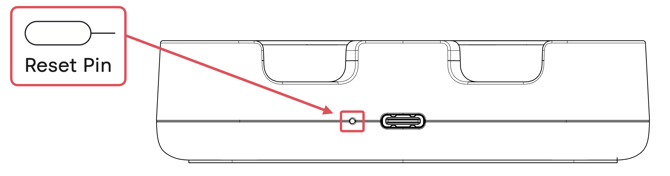
How to perform the hard reset
-
Place the Stellar Mic(s) you want to reset into the Charging Dock.
-
Turn the Charging Dock around so the rear side is facing you. Ensure that no USB cable is connected to the dock.
-
Locate the small reset hole on the rear of the dock. It is positioned to the left of the USB port (see photo above).
-
Insert the Reset Pin into the hole briefly, just long enough to press the internal switch once. Then remove the pin immediately.
-
Insert the Reset Pin again, press the internal switch, and keep it pressed for approximately 15 seconds.
-
Maintain steady pressure the entire time.
-
Do not release early.
-
-
Remove the Reset Pin and turn the Charging Dock back around.
-
Check the LED lights on the Stellar Mic(s):
-
LEDs are off → the reset was successful
-
LEDs are still on → the reset failed; repeat the steps from the beginning
-
Powering the Stellar Mics back on
- Insert the Reset Pin into the hole and press the internal switch once more, or
-
Connect a USB charger to the back of the Charging Dock while the Stellar Mic(s) are still docked. Once power is applied, the Stellar Mic(s) will automatically wake up.
Note: After a hard reset, tap-to-wake will not work until the microphones have been powered on via the Charging Dock.