---
title: Sync Audio with Video in Nomono Studio Cloud
description: Learn how to sync Nomono audio recordings with external video files in Studio Cloud and export videos with enhanced, studio-quality sound.
---
[Skip to content](https://support.nomono.co/sync-audio-with-video-in-nomono-studio-cloud#main-content)
[Contact us](https://support.nomono.co/kb-tickets/new?hsLang=en)
[![nomono-logo-default-on-light (1) (1)-2.svg\]](https://support.nomono.co/hubfs/nomono-logo-default-on-light%20(1)%20(1)-2.svg)](https://nomono.co)
Open main navigation
Close main navigation
- [Contact us](https://support.nomono.co/kb-tickets/new)
- [Go to nomono.co](https://nomono.co/)
[Go to nomono.co](https://nomono.co/)
How can we help you?
- There are no suggestions because the search field is empty.
1. [Knowledge Base](https://support.nomono.co/?hsLang=en)
2. [Studio Cloud](https://support.nomono.co/studio-cloud?hsLang=en)
3. [Cloud FAQ](https://support.nomono.co/studio-cloud?hsLang=en#cloud-faq)
# Sync Audio with Video in Nomono Studio Cloud
## Learn how to sync Nomono audio recordings with external video files in Studio Cloud and export videos with enhanced, studio-quality sound.
**Note:** Audio/Video Sync is currently in beta. Support for additional video formats and browsers will expand over time. The feature may still appear in Nomono Studio Cloud even if your browser is not supported.
**Supported devices and browsers:**
- Android: Chrome
- Windows: Chrome
- iOS/Mac: Safari and Chrome
### **Introduction**
Studio Cloud allows you to sync audio recorded with your Nomono hardware (Sound Capsule or Stellar Kit) to an external video file. This makes it easy to combine high-quality microphone recordings with video captured on a phone, camera, or computer.
---
### **Tips and tricks**
#### **Start the audio recording first**
If you are recording video with a phone, the video recording may stop if you leave the camera app. Because of this, it is often best to start your audio recording first and then begin recording video.
**Stellar Kit users should start the audio recording first** and begin video recording afterwards to avoid interrupting the video capture.
**Do not edit the video before syncing**
Avoid trimming or editing the video file before performing the audio/video sync. The sync engine will not automatically align multiple edited sections. Instead, it identifies the **longest matching segment** between the audio and video and syncs only that portion.
For best results, the recommended workflow is to **sync the full, unedited video first**, export the synced version, and then perform any video editing afterward.
---
### **Step-By-Step Guide**
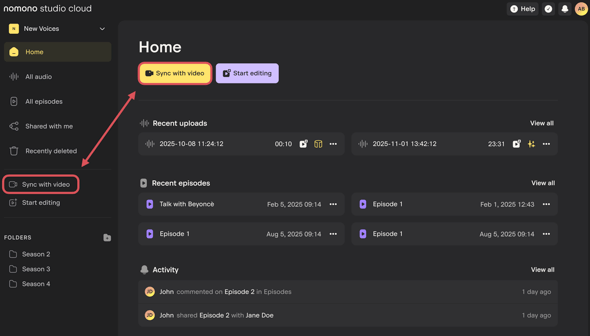
1. **Locate and enter the audio/video sync feature**
From the Studio Cloud Home-page, select **Sync with video**
****
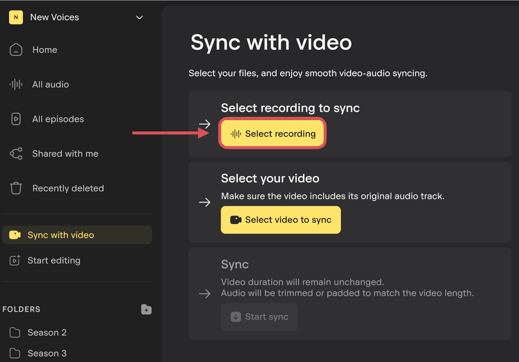
2. **Choose the audio recording**
Press **Select recording** to navigate in Studio Cloud to the recording you wish to synchronize with video.
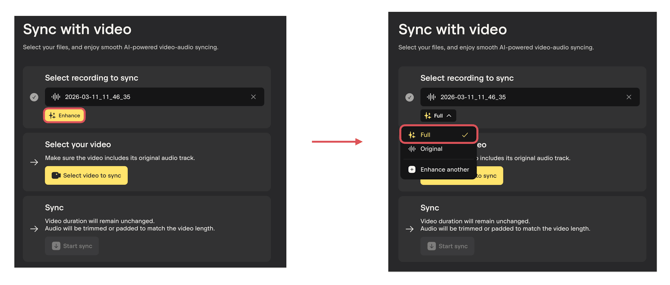
3. **Enhance the audio *(recommended)***
Use AI enhancement right from within this view, to improve the audio quality prior to sync. you can easily toggle back and between different versions of the same recording.
****
4. **Choose the video recording**
Press **Select video to sync** to open up the file selector, allowing you to locate and select the video on your device. The video is not uploaded, but the audio is extracted for analysis and replacement.
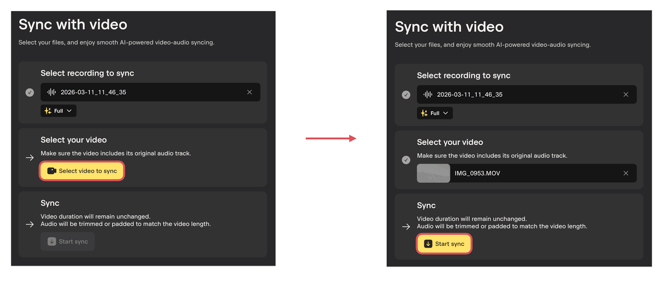
5. **Start the Audio/Video sync**
Once you have correctly chosen the audio and corresponding video recording, press Start Sync to initiate the synchronization. The platform automatically aligns the audio and video, trimming or padding the audio with silence to fit.
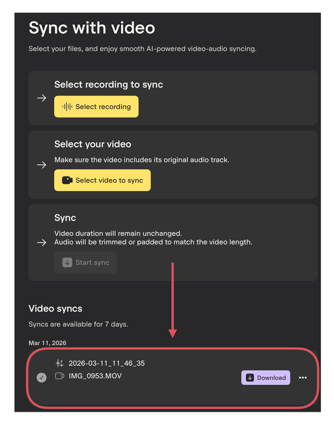
6. **Download the result**
Once processing is complete, download your finished video with the enhanced audio applied.
---
### **Technical specifications**
#### **Supported recording length**
- Minimum: **1 minute**
- Maximum: **2 hours**
#### **Audio/video length mismatch handling**
If the audio and video files are not the same length, the system will automatically:
- Trim excess audio, or
- Fill missing segments with silence
#### **Synchronized file retention**
- Generated synchronized files are stored for **up to 7 days**
- After expiration, the synchronization process must be performed again
#### **Supported video formats**
- MP4
- MOV
- MKV
- WebM
- OGG
- MPEG-TS
#### **Supported browsers**
- Google Chrome
#### **Supported device**
- Android: Chrome
- Windows: Chrome
- iOS/Mac: Safari and Chrome
---
#### **Troubleshooting**
If you experience issues when syncing audio and video, check the following:
1. **Verify that the correct files were selected**
Ensure that you have selected the intended audio recording from your workspace and the correct video file for syncing.
2. **Check that your video format is supported**
Only the following formats are currently supported: MP4, MOV, MKV, WebM, OGG, and MPEG-TS.
3. **Use a supported browser**
Sync with video currently works best in **Google Chrome**. If you experience issues, try switching to Chrome and repeat the process.
4. **Confirm the video length**
Video files must be **longer than 1 minute** in order to be processed.
5. **Restart the download if you leave the page**
If you navigate away from the browser tab during processing or download, you will need to **reselect the video file** to start a new synced export.
- [Getting Started](https://support.nomono.co/getting-started?hsLang=en#main-content)
- [Introduction](https://support.nomono.co/getting-started?hsLang=en#introduction)
- [Get to know your Sound Capsule](https://support.nomono.co/getting-started?hsLang=en#get-to-know-your-sound-capsule)
- [First Time Use](https://support.nomono.co/getting-started?hsLang=en#first-time-use)
- [User Manual](https://support.nomono.co/getting-started?hsLang=en#user-manual)
- [Tutorials](https://support.nomono.co/getting-started?hsLang=en#tutorials)
- [Sound Capsule](https://support.nomono.co/sound-capsule?hsLang=en#main-content)
- [Charging and Battery](https://support.nomono.co/sound-capsule?hsLang=en#charging-and-battery)
- [Sound Capsule FAQ](https://support.nomono.co/sound-capsule?hsLang=en#sound-capsule-faq)
- [Stellar Mics FAQ](https://support.nomono.co/sound-capsule?hsLang=en#stellar-mics-faq)
- [Travelling with the Sound Capsule](https://support.nomono.co/sound-capsule?hsLang=en#travelling-with-the-sound-capsule)
- [Troubleshooting](https://support.nomono.co/sound-capsule?hsLang=en#troubleshooting)
- [USB File Transfer](https://support.nomono.co/sound-capsule?hsLang=en#usb-file-transfer)
- [Video and live streaming](https://support.nomono.co/sound-capsule?hsLang=en#video-and-live-streaming)
- [Wi-Fi and Connectivity](https://support.nomono.co/sound-capsule?hsLang=en#wi-fi-and-connectivity)
- [Stellar Kit](https://support.nomono.co/stellar-kit?hsLang=en#main-content)
- [FAQ](https://support.nomono.co/stellar-kit?hsLang=en#faq)
- [Troubleshooting](https://support.nomono.co/stellar-kit?hsLang=en#troubleshooting)
- [Studio Cloud](https://support.nomono.co/studio-cloud?hsLang=en#main-content)
- [Account](https://support.nomono.co/studio-cloud?hsLang=en#account)
- [AI Enhancement](https://support.nomono.co/studio-cloud?hsLang=en#ai-enhancement)
- [Cloud FAQ](https://support.nomono.co/studio-cloud?hsLang=en#cloud-faq)
- [Collaborating and Sharing](https://support.nomono.co/studio-cloud?hsLang=en#collaborating-and-sharing)
- [Commenting](https://support.nomono.co/studio-cloud?hsLang=en#commenting)
- [Editing](https://support.nomono.co/studio-cloud?hsLang=en#editing)
- [Subscription](https://support.nomono.co/studio-cloud?hsLang=en#subscription)
- [Troubleshooting](https://support.nomono.co/studio-cloud?hsLang=en#troubleshooting)
- [Uploads and Downloads](https://support.nomono.co/studio-cloud?hsLang=en#uploads-and-downloads)
- [Orders, shipping and returns](https://support.nomono.co/orders-shipping-and-returns?hsLang=en#main-content)
- [Orders](https://support.nomono.co/orders-shipping-and-returns?hsLang=en#orders)
- [Payment and billing](https://support.nomono.co/orders-shipping-and-returns?hsLang=en#payment-and-billing)
- [Returns](https://support.nomono.co/orders-shipping-and-returns?hsLang=en#returns)
- [Shipping](https://support.nomono.co/orders-shipping-and-returns?hsLang=en#shipping)
- [Warranty](https://support.nomono.co/orders-shipping-and-returns?hsLang=en#warranty)
- [Updates and New Features](https://support.nomono.co/updates-and-new-features?hsLang=en#main-content)
- [Sound Capsule](https://support.nomono.co/updates-and-new-features?hsLang=en#sound-capsule)
- [Nomono Cloud](https://support.nomono.co/updates-and-new-features?hsLang=en#nomono-cloud)
- [Guides](https://support.nomono.co/updates-and-new-features?hsLang=en#guides)
[-2.png?width=160&height=24&name=logo%20(1)-2.png "Chill listening crop-3")](http://nomono.co)
Knowledge Base
Copyright © 2026, Nomono