![nomono-logo-default-on-light (1) (1)-2.svg]](https://support.nomono.co/hubfs/nomono-logo-default-on-light%20(1)%20(1)-2.svg)
Once the Studio App has successfully gathered all audio data from the Stellar Mics, the next step is uploading the recording to Nomono Studio Cloud. This process is usually very stable, but in rare cases the upload may not complete as expected.
How to tell if an upload is stuck
The Studio App can continue uploading recordings even if the app is closed and running in the background. Normally, your recording should appear in Studio Cloud shortly after data gathering is complete.
If nothing appears after a reasonable amount of time, it’s worth checking the upload status in the app.
Step 1: Check the upload queue
-
Open the Studio App
-
Navigate to your Stellar Kit
-
Open the upload queue drawer near the bottom of the screen
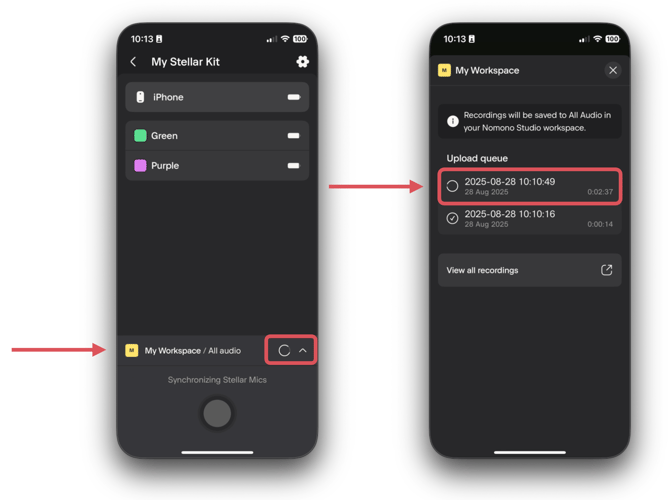
Inside the upload queue, look for recordings that:
-
Show a spinning wheel with no sign of progress, or
-
Display a “!” warning icon
These indicate that the upload may be stuck or incomplete.
Step 2: Retry the upload
-
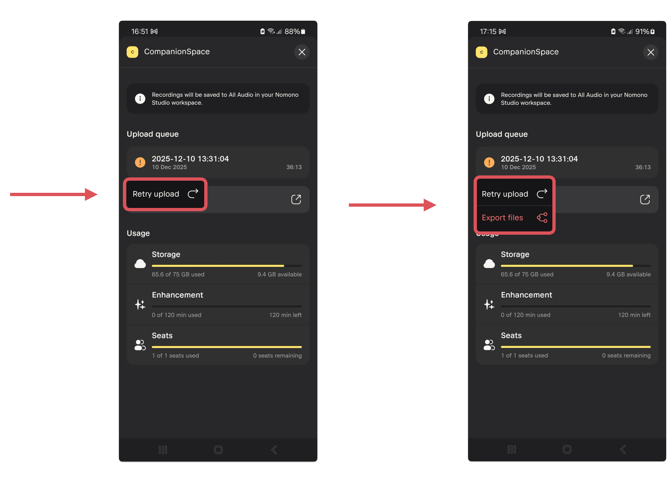
Tap the recording that appears stuck
-
When prompted, tap Retry upload
In many cases, the upload will resume and complete successfully after one or two retries.
Step 3: Export the file (if retrying doesn’t work)
If the upload still doesn’t complete after retrying several times, you may see an option to Export files.
At this point, you have two options:
-
Continue retrying the upload to Studio Cloud, or
-
Manually export the file
If you choose to export, you can save or share the recording via:
-
iCloud
-
Google Drive
-
Email
-
Other standard file-sharing options on your device
Step 4: Upload the file manually to Nomono Studio Cloud
Once the file has been successfully exported and saved, you can manually upload it to Nomono Studio Cloud by following this guide.
If you continue to experience upload issues after following these steps, feel free to reach out to support and we’ll be happy to help.